Invisible to every screen-share, visible only to you.
Interview Copilot runs in a private overlay that screen-sharing and screen-recording leave out. Your interviewer sees your camera and hears your voice — nothing else.
Use InterviewLift in line with your interviewer's rules and applicable laws.
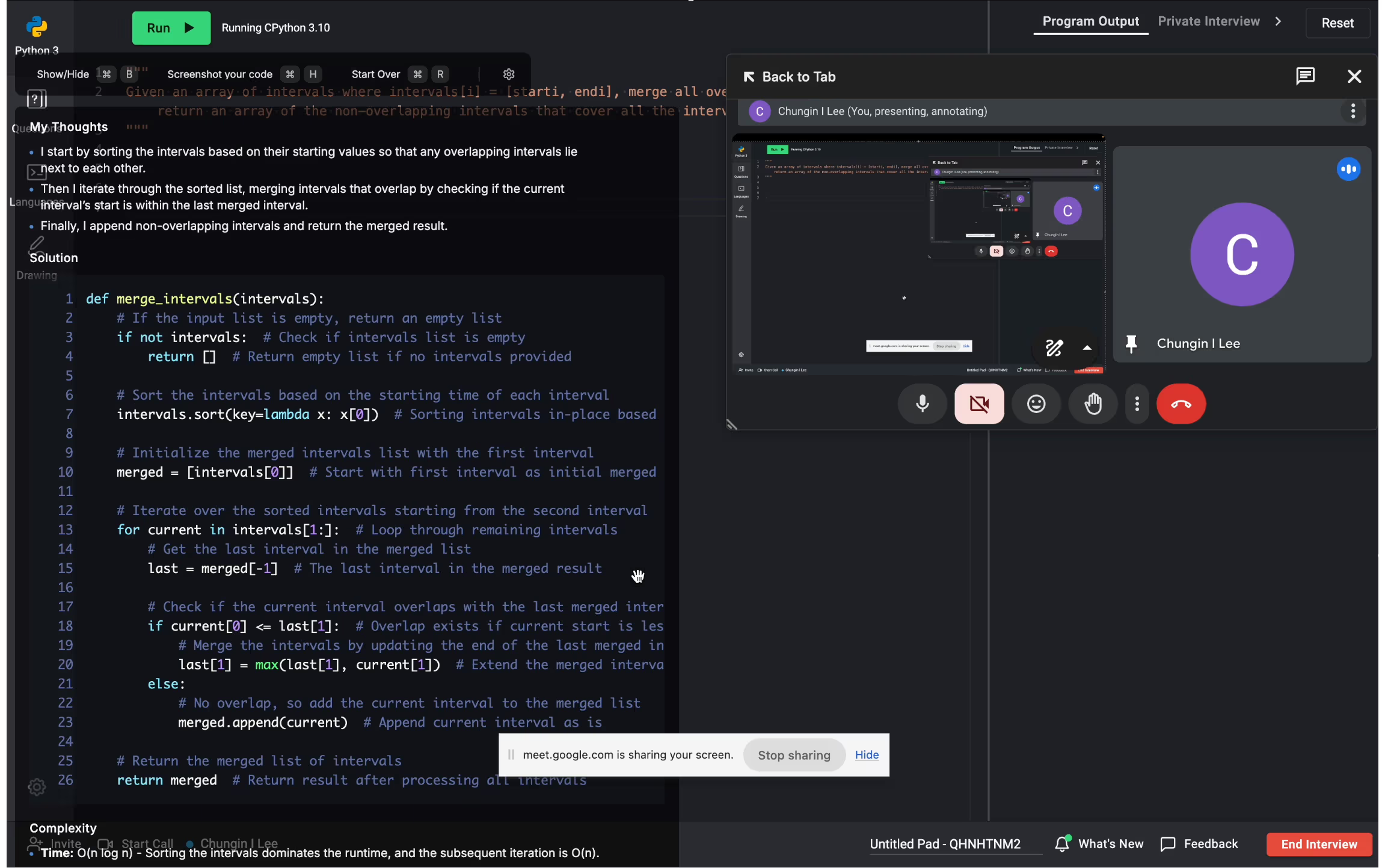
This is what your interviewer sees : nothing
click any to see it in action!
Interviewer asks aloud — Jarvis listens and answers silently.
Invisible to interviewer
zoom.us/j/interview-5421
Sarah Chen · Engineering Lead
You
RECInterview · Backend engineer
00:00
Mute⌘L
Screenshot⌘H
Solve⌘⏎
Move⌘↑↓←→
Scroll⇧↑↓
Font Size⌘⇧+/-
History⇧←→
Clear⌘K
Quit⌘Q
Protected
Idle
Waiting for audio…
Audio: Mute
Auto-playing every input mode · click a tab to pause
Recorded proof
Real captures from real interviews undetected
Not staged screenshots — these are actual recordings from live sessions. The overlay never appears in the screen-share frame, and your webcam keeps natural eye contact while you read it.
✓ Undetectable
01 · Screen share
Invisible in the capture frame
Zoom, Teams, Meet, and OBS all see a transparent rectangle where the overlay lives. The candidate sees the answer; the interviewer sees nothing.
✓ Native overlay
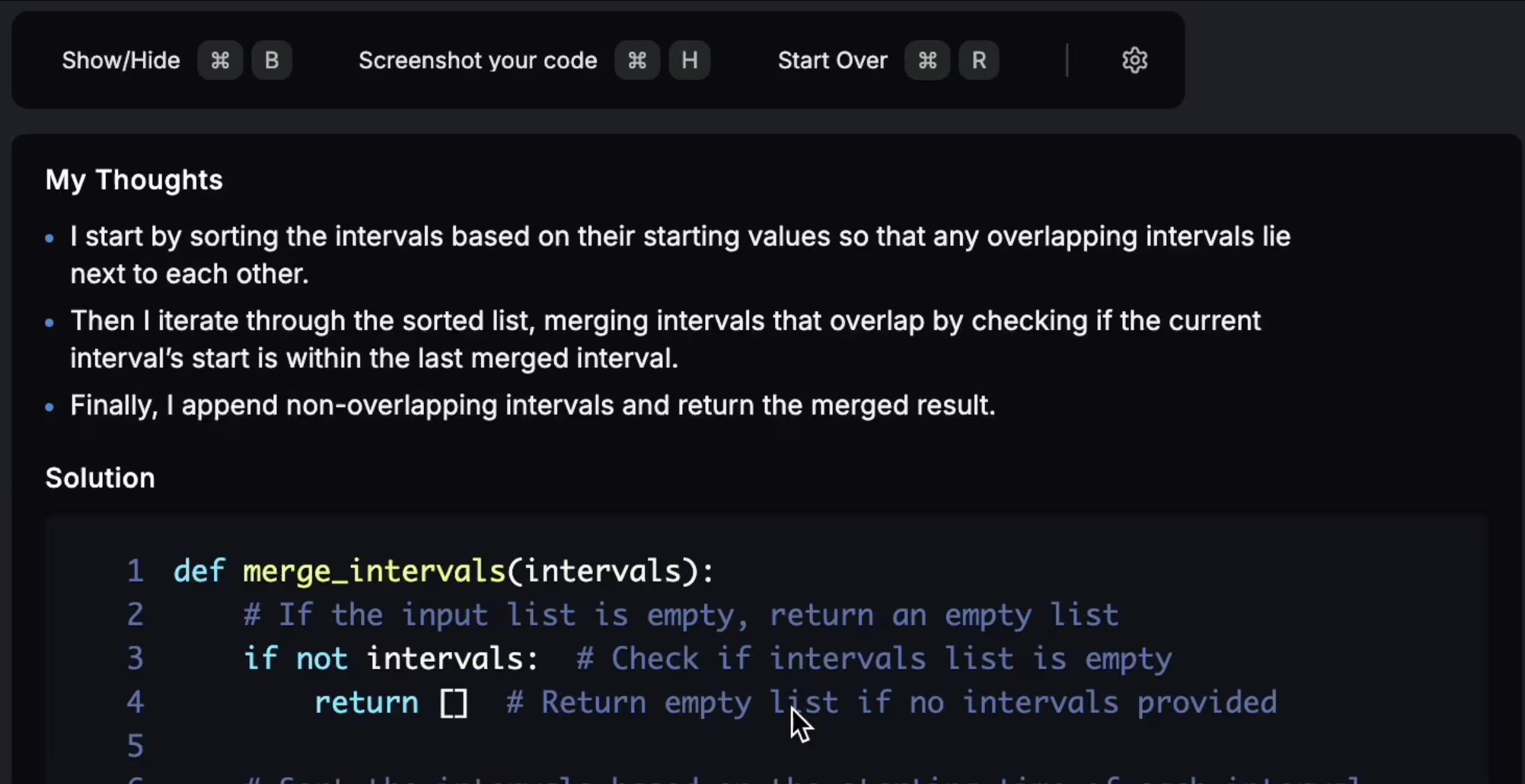
02 · Thought stream
Structured answers, in your peripheral vision
Jarvis surfaces a step-by-step approach next to your editor — read it once, talk through it in your own words, no copy-paste, no head-down typing.
✓ Natural eye contact
03 · Webcam
Eye contact stays natural
The overlay sits above your video feed, not below it — so your gaze tracks where the interviewer expects. No tab-switching tells, no off-screen glances.
How we stay invisible
Three layers of isolation
Each layer is independent — if one fails, the others still cover you.
01
Excluded from screen capture
The overlay window sets the OS-level "display affinity" flag. Zoom, Teams, Meet, and native screen recorders render it as a transparent rectangle.
02
A desktop app, not a browser extension
Jarvis runs as a standalone desktop app on macOS and Windows, so there is no browser extension to install.
03
Private, encrypted sessions
Sessions are stored encrypted on our servers and never shared with your interviewer or employer. You get your transcripts, and you can switch recording off anytime in Settings.
Currently verified
Tested against every major platform every release
We re-test undetectability on every release. If a platform ships an update that could expose the overlay, we patch within 48 hours and notify every active user.
No. InterviewLift is a native macOS and Windows desktop app — not a browser extension — and uses operating-system display-affinity flags (macOS NSWindowSharingNone, Windows SetWindowDisplayAffinity) so the overlay is excluded from screen-share and screen-recording. We re-test it against Zoom, Teams, and Google Meet on every release.
Zoom (incl. break-out rooms and screen-share), Microsoft Teams (incl. Together Mode), Google Meet (incl. Chrome-tab share and Gemini meeting notes), Amazon Chime, Webex, and any other video platform that does not require a browser extension to function.
Usually, yes. The Windows installer is code-signed and the macOS app is notarised by Apple. Some company-managed laptops block installing any new software, so check your IT policy first.
InterviewLift is free to install, and every new account gets 15 free questions with Jarvis, no card needed. To try a full live interview, the 1-round Jarvis pack is the way in. Gold and Diamond plans come with a 3-day money-back guarantee.
Walk in invisible. Walk out hired.
Start with 15 free Jarvis questions, no card needed.
Everything you should know about the AI interview copilot
+
A real-time AI interview copilot is the single highest-leverage tool in a 2026 job hunt. This is a deep-dive into what the copilot is, how it works, what it does on Zoom, Microsoft Teams, and Google Meet specifically, and how to use it in line with your interviewer's rules.
01
What the copilot does during a live interview
The copilot does four things continuously: it transcribes the interviewer's speech (the audio is sent encrypted to our AI providers), classifies the question type (coding, system design, behavioural, product-coding, case), generates a structured answer scaffold appropriate to the question type and your target company/level, and renders that scaffold in a transparent overlay positioned just below your camera so your eyes stay naturally centered.
Crucially, the copilot generates scaffolds, not scripts. You see the structure of a good answer — the four points that need to land, the complexity statement that needs to be made, the edge case that needs to be acknowledged — and you fill in the prose in your own voice. That is the difference between sounding prepared and sounding rehearsed.
Round-aware answer scaffolds
The model classifies the round type from context in the first 30 seconds. For coding rounds, it provides a complexity-anchored hint, three edge cases ranked by interviewer-impact, and a clean implementation outline. For system design, it provides a load-anchored API definition, a data-flow diagram in text form, and three scaling-relevant follow-up considerations. For behavioural rounds, STAR-shaped scaffolds calibrated against the company's rubric (LP for Amazon, Values for Meta, Growth Mindset for Microsoft, Googleyness for Google).
02
How the copilot stays undetectable on screen-share
InterviewLift uses operating-system display-affinity flags to mark the overlay window as excluded from screen capture at the OS level. On macOS this is NSWindowSharingNone; on Windows it is SetWindowDisplayAffinity with WDA_EXCLUDEFROMCAPTURE. Both flags instruct the operating system to filter the overlay out of capture streams that use the standard capture APIs — including Zoom screen-share, Microsoft Teams Graphics Capture, Google Meet Chrome-tab share, QuickTime recording, and OBS.
Other copilots are built in different ways, and how each one handles screen-share changes from release to release. Rather than describe them here, we keep a dated, sourced comparison for each one on our alternatives pages.
Re-tested on every release against the latest Zoom / Teams / Meet builds
Every InterviewLift release is regression-tested against the latest Zoom, Microsoft Teams, and Google Meet client builds. Methodology: a candidate machine runs the copilot, a recruiter machine receives the screen-share, and a third machine records the recruiter view. We compare the recorded video with the candidate's actual screen and check that the overlay never appears.
Corporate and managed laptops
The Windows installer is code-signed and the macOS version is notarised by Apple. Neither version requires admin privileges. Some company-managed laptops block installing new software altogether, so check your IT policy before your interview.
03
Platform-specific behaviour: Zoom, Teams, Google Meet
On Zoom, the copilot handles break-out rooms (audio routing re-establishes automatically), screen-share (excluded at OS level), and Zoom Whiteboard (read via screen analysis, not Zoom API). On Microsoft Teams, it handles Together Mode, Teams meeting recording (excluded from Graphics Capture), and OneDrive/SharePoint case-study links (indexed for talking points). On Google Meet, it handles Chrome-tab share (the overlay is outside Chrome so the tab share cannot capture it), Meet captions (independent transcript), and the new Gemini meeting notes (Gemini transcribes only spoken audio, not the overlay).
04
Pricing
The InterviewLift copilot is included in every plan. You buy round packs from a single interview round (valid 30 days) or a 3-, 6- or 12-month plan, and the pricing page shows prices in your currency. InterviewLift is free to install and every new account gets 15 free questions with Jarvis, no card needed. To try a full live interview, the 1-round pack is the way in. Gold and Diamond plans come with a 3-day money-back guarantee.